Appearance
Parent/Guardian Guide
This guide is for parents/guardians who will be managing competition entries for their children and will cover the following topics:
If you have any questions or need help with any of the topics covered in this guide, please email support@compadminpro.com.
Creating an Account
To create an account you can visit the registration page here and fill out the following required fields:
- First Name
- Last Name
- Email Address
- Mobile
- Password
Upon registration, you will receive a welcome email and be logged in to CompAdminPro, from here you can start adding competitors.
Adding Competitors
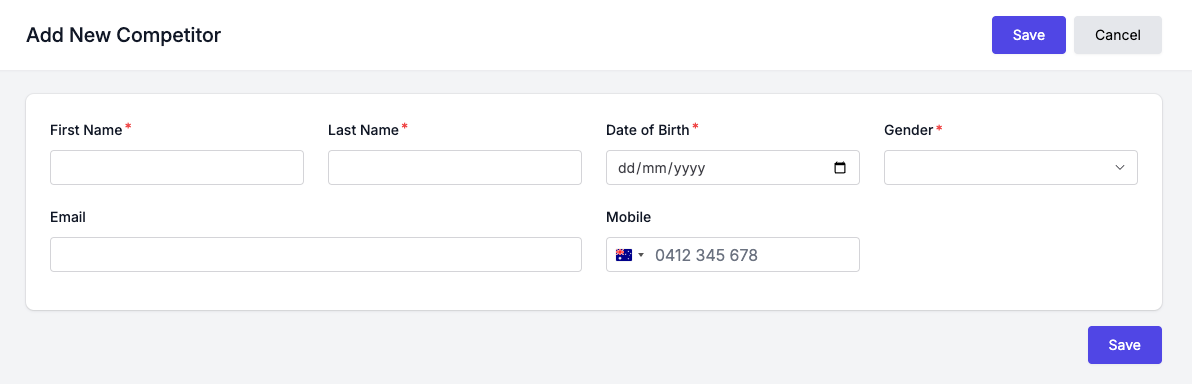
From the Competitors page, you can add a competitor by clicking the Add Competitor button and filling out the required fields:
- First Name
- Last Name
- Date of Birth
Existing Competitor Records
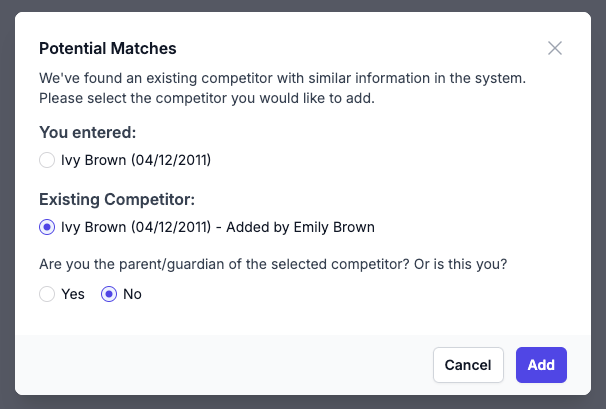
If you try to add a competitor that already exists in the system (they may have been added by your studio/school previously), you will be prompted to match the correct record, you can do this by selecting the "Existing Competitor" and "Yes" to being the parent/guardian then click the "Add" button.
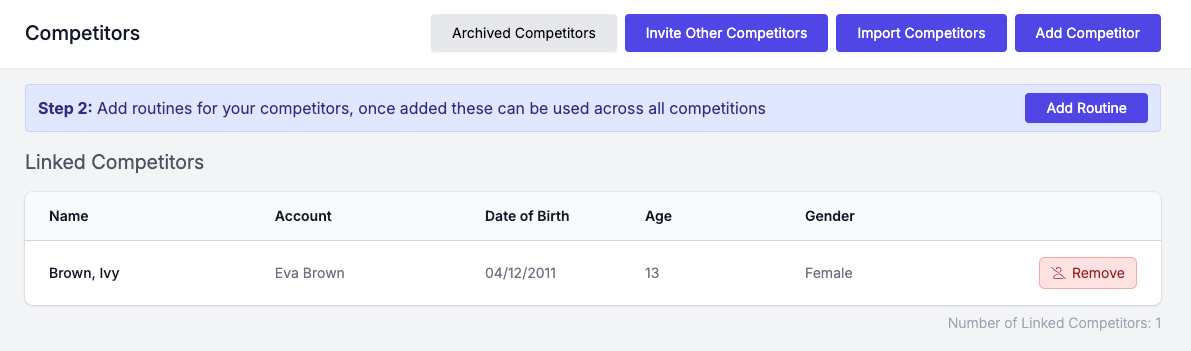
This will link the competitor to your account and an email will be sent to the other account who previously added the competitor to confirm the transfer to your account.
Adding Routines
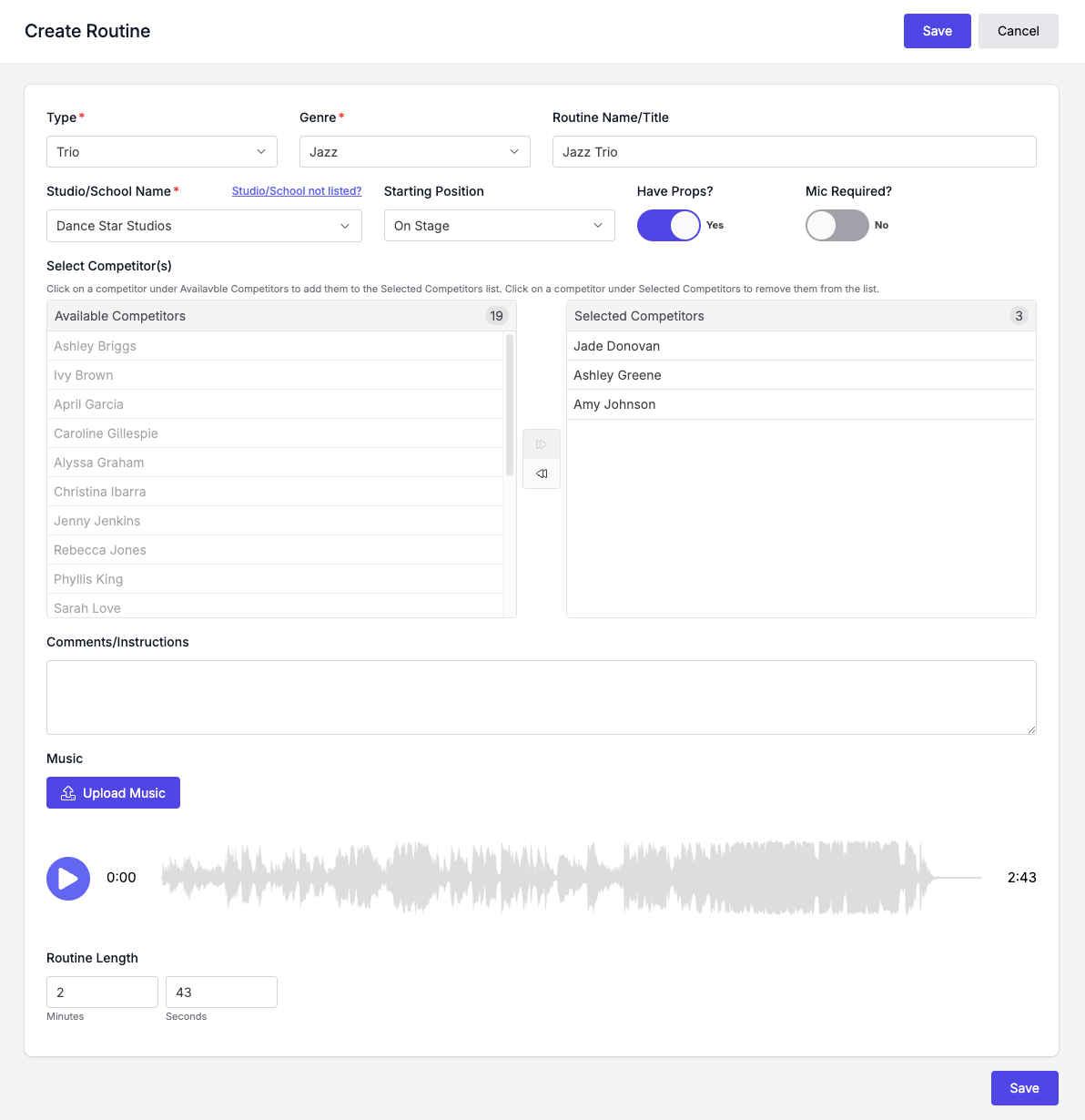
Now that you have competitors added to your account, you can add routines for them. You can do this by visiting the Routines page and clicking the "Add Routine" button.
Complete the form with the relevant details as required.
To select competitors for the routine you can simply click on the name of the competitor from your list of available competitors on the left-hand list, this will add them to the "Selected Competitors" list on the right-hand side.
You will be restricted to the number of competitors you can add to a routine based on type of routine you have selected, E.g. Solo, Duo/Trio, Quartet.
You do not have to upload your music at this stage if you do not have it, you can do this later when you are adding your entries or come back at a later time to edit the routine and upload the music.
Adding Entries
TIP
You should have already added your routine(s) before attempting to add an entry.
To add entries to a competition, you can visit the Entries page and click the "Add Entry" button. If you cannot see the "Entries" link in the main manu bar it means you have not selected a competition, either follow the link the competition organiser has provided or visit the Competitions page and select the competition you wish to add entries to.
When adding an entry it will have different categories, genres and section based on the competition you are entering. You can add entries for your competitors by visiting the Entries page and clicking the "Add Entry" button.
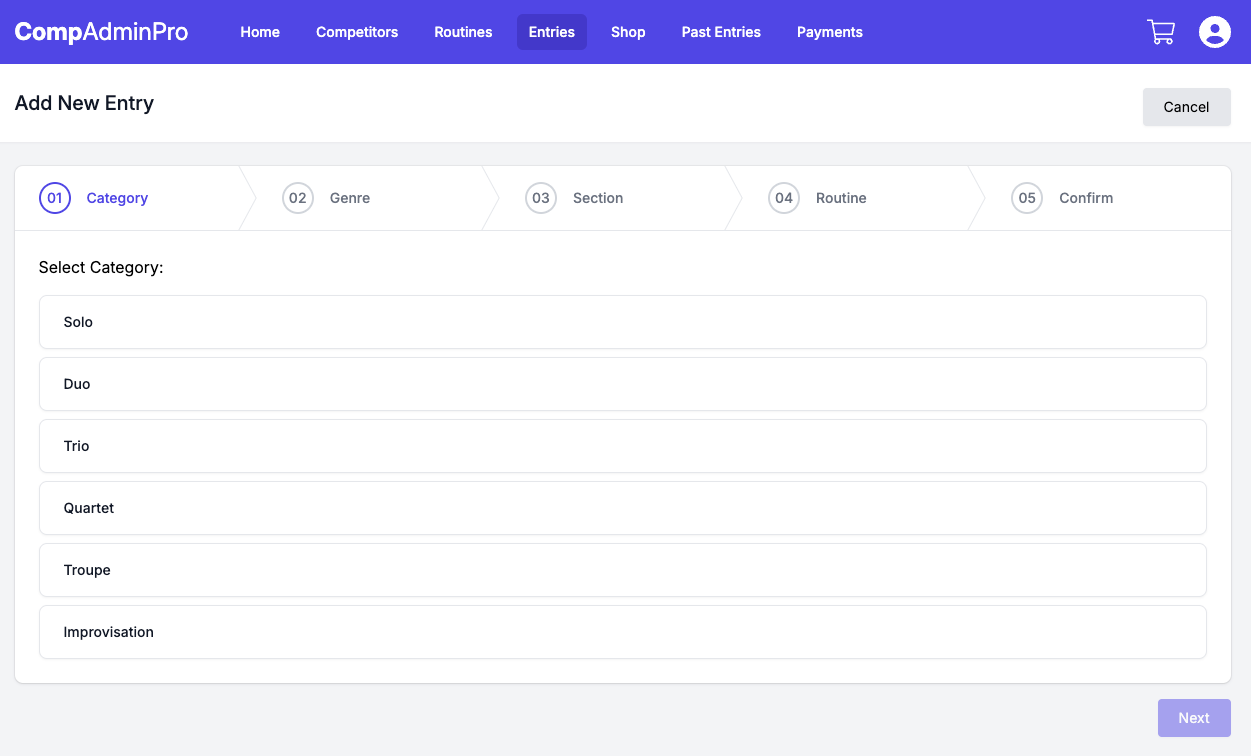
Step 1: Select Category
E.g. Solo, Duo/Trio, Troupe, etc.
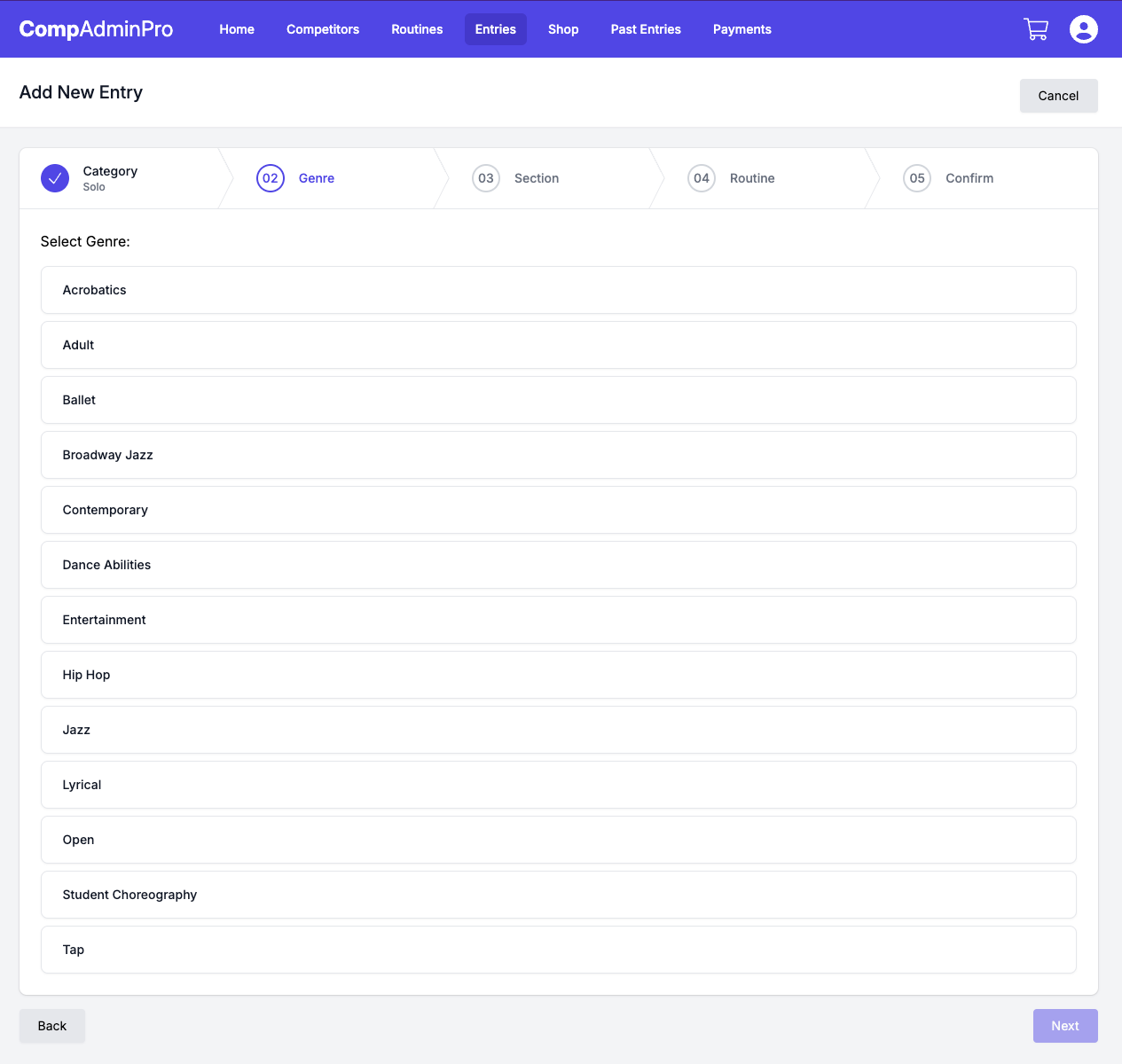
Step 2: Select Genre
E.g. Jazz, Tap, Lyrical, etc.
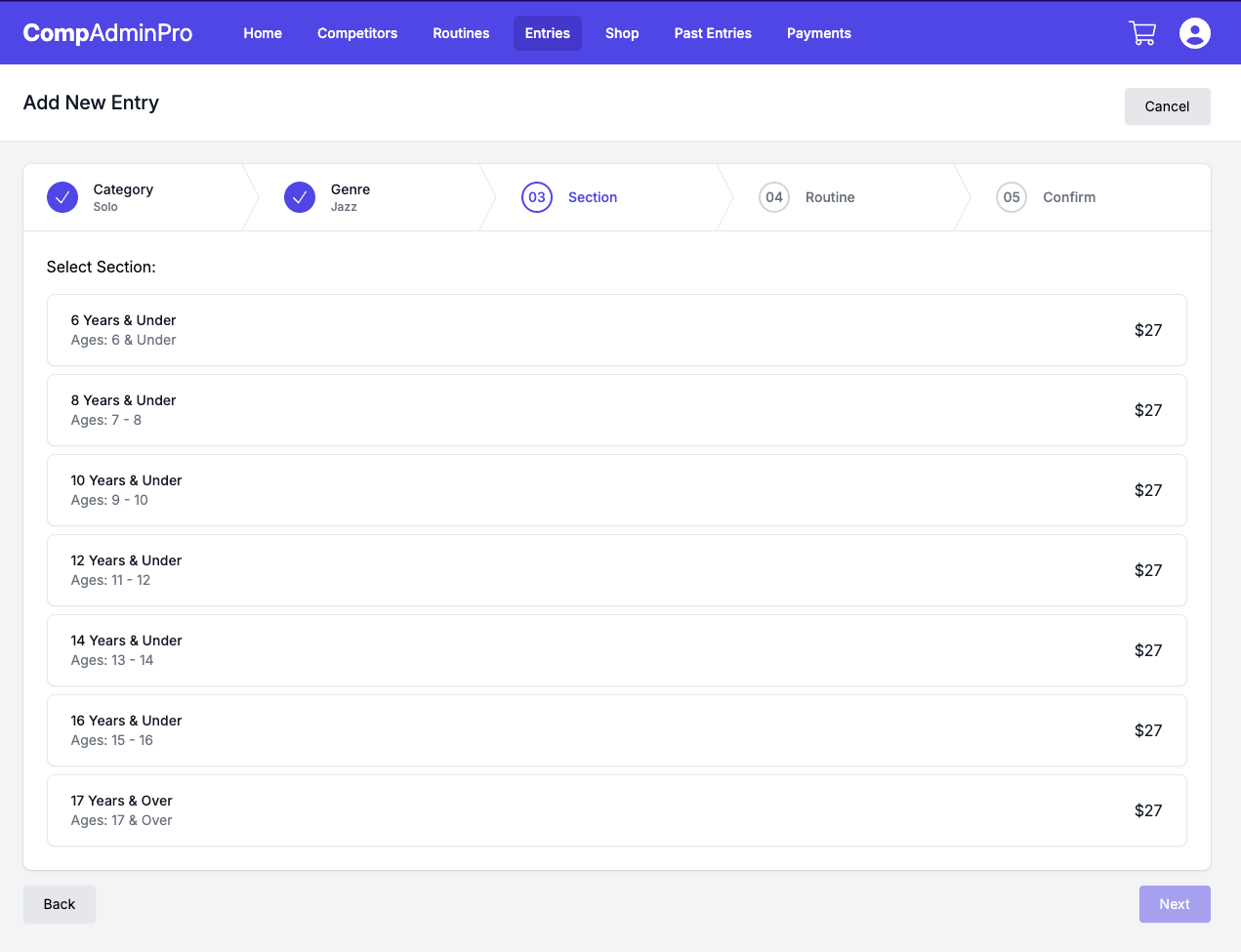
Step 3: Select Section
E.g. 10 Years & Under, 12 Years and Under, etc.
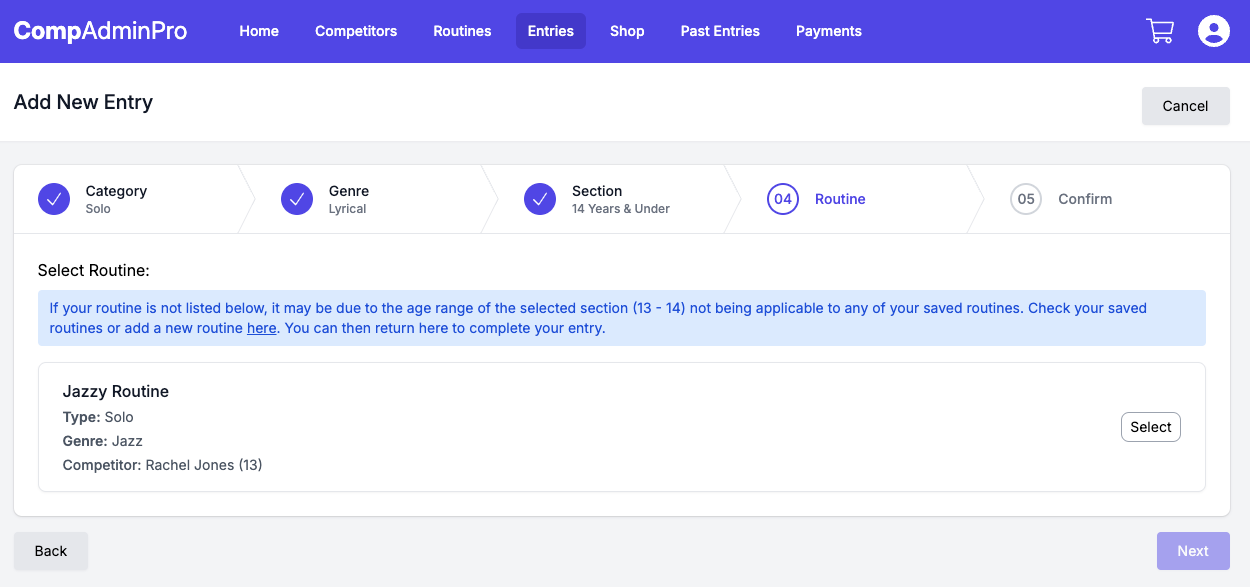
Step 4: Select Routine
Select one of the routines you have created
IMPORTANT
You will only be shown routines that are eligible for the category, genre, and section you have selected. Please check your competition rules for how ages are calculated.
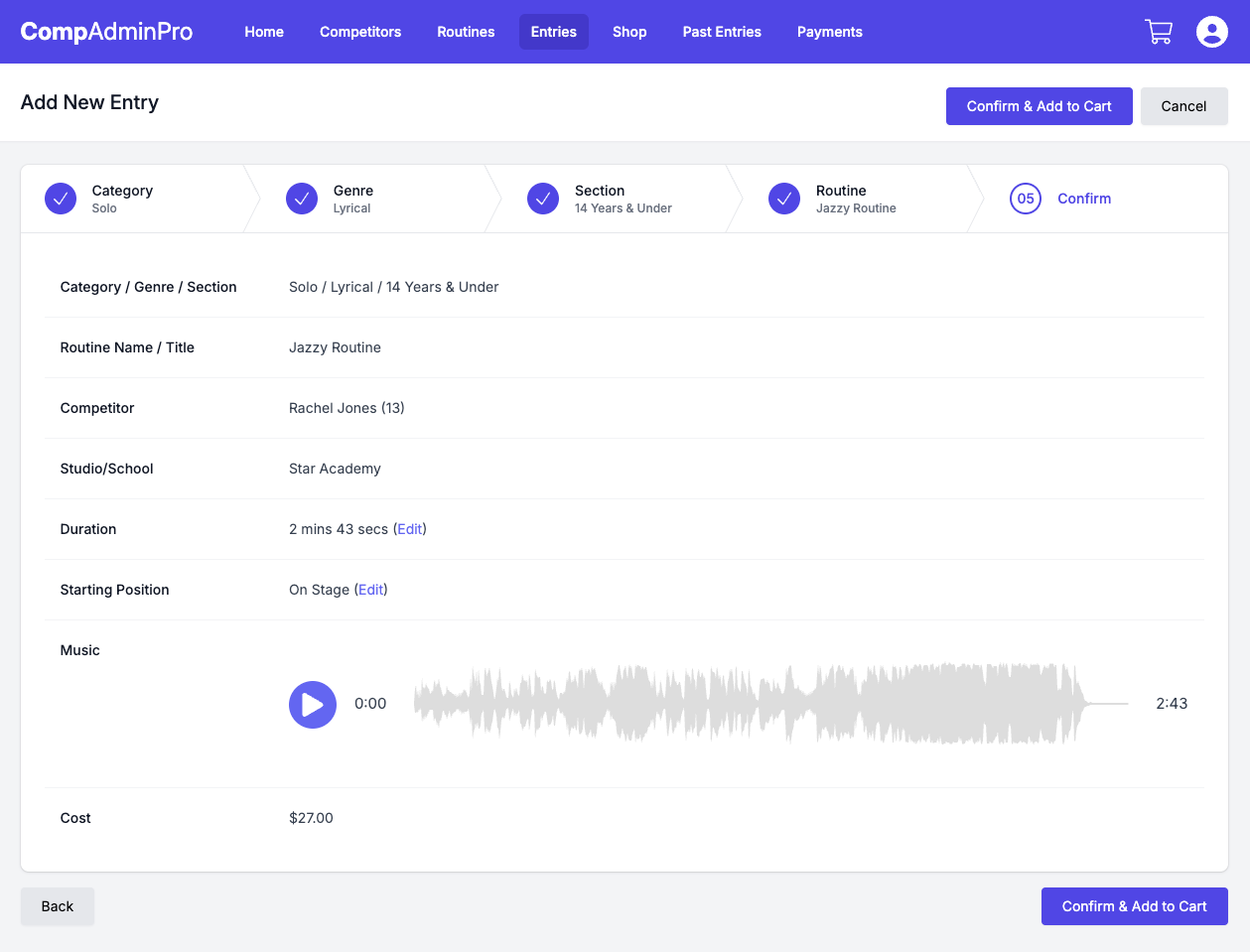
Step 5: Confirm Selection
Review your selection and click the "Confirm & Add to Cart" button, repeat this process for each entry you wish to add.
Review Entries
Once you have added all your entries, you can review them on the Entries page, you can also edit or remove entries from this page.
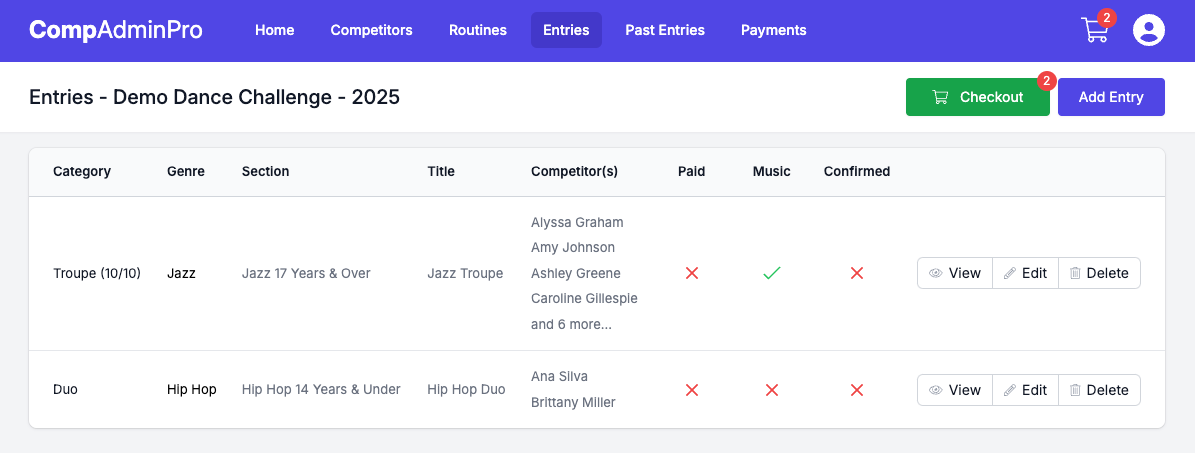
Once you are happy with your entries, you can proceed to the checkout/payment page.
Checkout and Payments
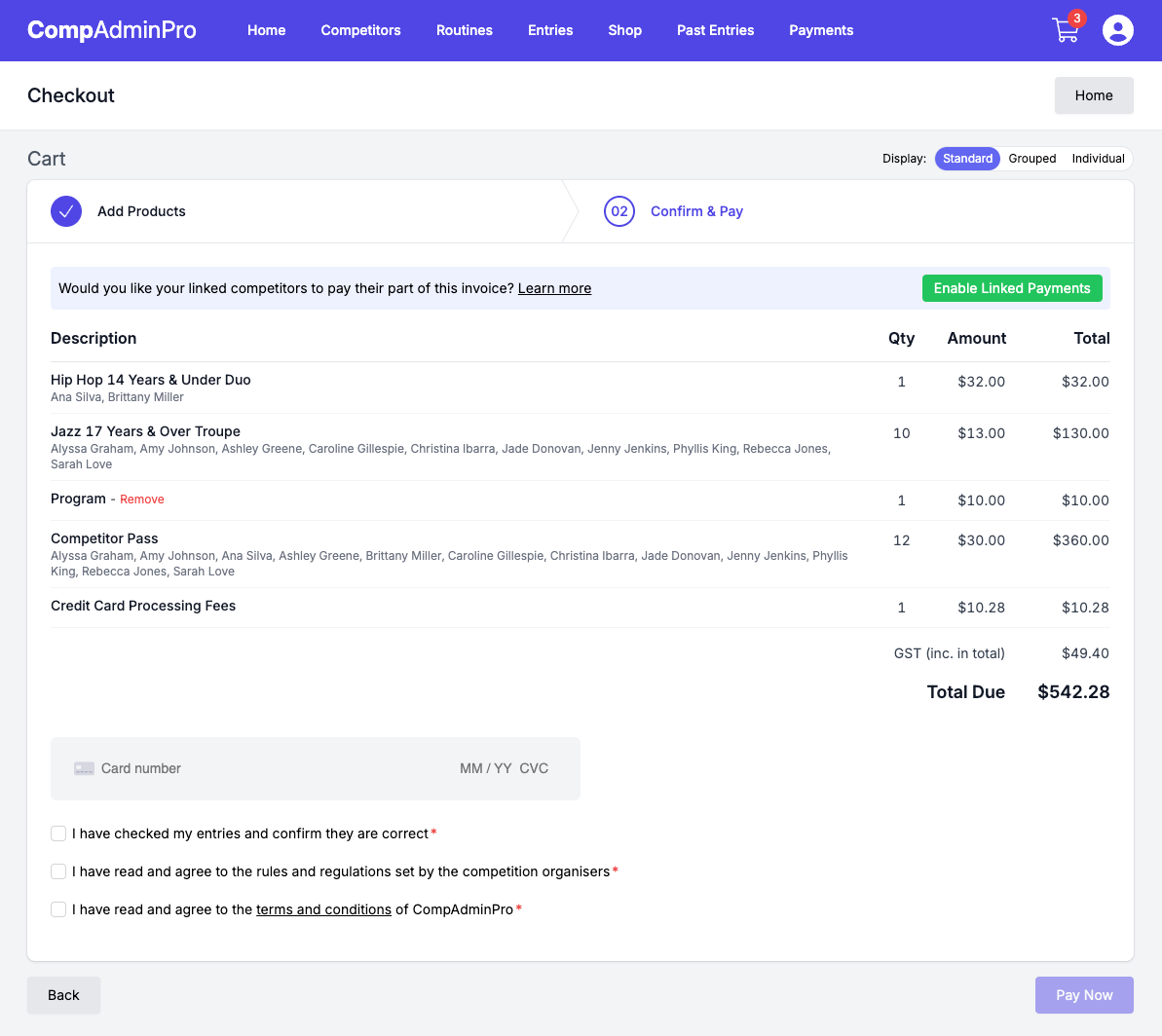
Click on the "Checkout" link on the Entries page or click the cart icon in the top right-hand corner of the page to proceed to the checkout page.
You will be able to review your entries and any additional items that have been added to your cart, such as competitor passes/products.
You can toggle between different view using the "Display" toggle at the top of the page. This is helpful if you have a lot of entries and want to see them individually or combined.
Pay by Credit/Debit Card
You will be able to pay for your entries using a credit/debit card field on the checkout page. Complete your card details and agree to any relevant terms and conditions before clicking the "Pay Now" button.